Loading...
Loading...
Loading...
Loading...
Loading...
Loading...
Loading...
Loading...
Loading...
Loading...
Loading...
Loading...
Exporting and importing platform settings
Export and import all of the platform settings. Reset the platform settings:
Bundles
Configuration
Databases
Reload fixtures
WHO CAN USE THIS FEATURE?
Logged super-administrators
Presets cannot be created.
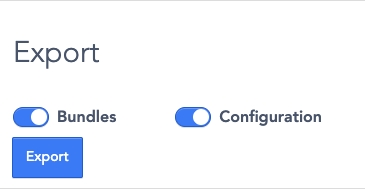
The “Export preset” (figure 1) feature, has the super-administrator download the configuration and the bundles used on the platform, from the SBO.
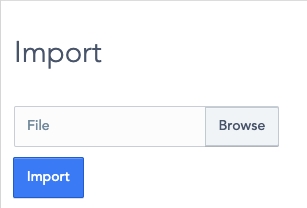
Import (figure 2) predefined platform’s bundles and configuration (example: Session mode / Service mode with such and such configurations).
A configuration can be imported from a computer through a .YML extension file.
Switch mode
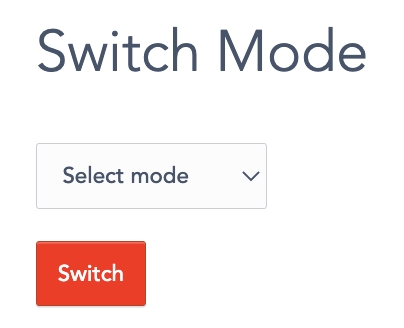
The switch-mode part will allow the super administrator to enable the platform mode of his choice, by selecting a mode in the list and clicking the “Switch button”.
It uses commonly use to enable bundle:
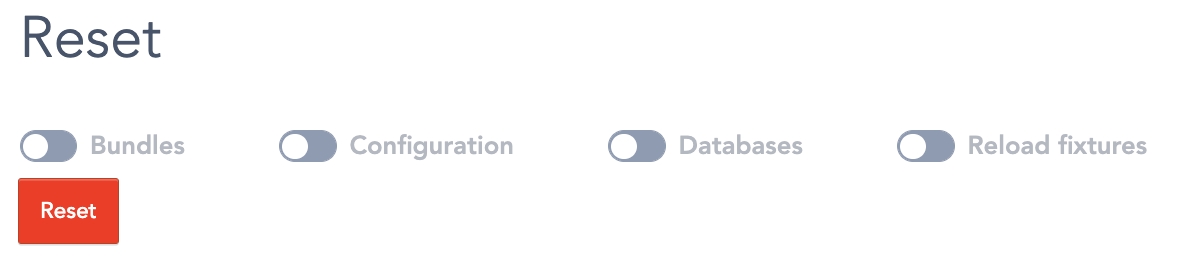
The “Reset” feature (figure 4) returns to default all values of bundles, configurations, and fixtures depending on what is selected.
Each of these parts could be reset:
Bundles
Configurations
Databases (Fixtures)
Reload fixtures
To export settings, please select the needed options with the radio buttons (figure 5).
Bundles: will export the enabled bundles' configuration
Configurations: export all the configurations list and their value.
To finalize it, click “export” (figure 6)
The export is a .YML extension file
To import a configuration to a platform, click “Browse” (figure 7) and choose the .YML file.
Then click “import”.
The platform will then have the configuration saved with the file.
The platform settings can be reset based on a default configuration.
Select the items with the radio button (figure 8), according to the setting to reset
Click “Reset” (figure 9).
Be careful, this will erase all the settings, configuration, and database.
Presets cannot be deleted.
SBO:
During the listing creation, In the third step, vendors must select the rendering type model, which determines how customers interact with the listing. To assist vendors in this process, an AI-powered feature has been integrated into this step.
The AI analyzes the listing title and description to suggest the most appropriate rendering type for the service being offered.
This feature can be enabled or disabled in the SBO configurations by activating or deactivating the "Deposit Listing Auto-Suggestion" option.
Learn how to enable the artificial intelligence at SCND (SBO > Features)
This page list all the features working with artifial intelligence
Learn how to enable artificial intelligence at SCND
Explain how to configure the AI Patterns feature
How to configure the AI search assistant at SCND
How to configure the vendor-matching when creating an RFP request
Learn how to configure the RFP assistant
handeling the commands and scheduled tasks on a platform

Go to API Keys Page: Once logged in, click on your profile in the top-right corner and select API Keys from the dropdown menu.
Create a New API Key: On the API Keys page, you can see existing keys (if any). Click the Create new secret key button to generate a new key.
Copy the API Key: Once the key is generated, copy it immediately as you will not be able to view it again. Store it securely in a password manager or environment variables file.
Use Your API Key: Use this key in your by placing it in the configuration (Figure 2).
When the AI is enabled by the administrator, it also activates the AI search assistant simultaneously.

The commands part in the SBO should work automatically, without particular modification.
A command is a scheduled task done by the server. For each task, it will execute a control at a given time. That means the server verify pieces of information on the platform a few times per day, or hour to do some automatic tasks. Some actions can be derived from it such as: sending emails, updating booking status, and more.
WHO CAN USE THIS FEATURE?
Logged super-administrators
Commands can not be created.
Each task that can be controlled is composed of (figure 1):
The name: indicates what will be triggered.
The description: it describes what will be triggered.
The periodicity: it is the time of control. It is based on the Cron system.
The next run date: it is the next date and time when the control will be done.
The button “run”
To test the booking expiration or the booking validation (for example), you can configure negative values in SBO > Other > Configurations, and run commands.
Commands can be activated manually by clicking “run” (figure 2).
The “run” button, allows the super-administrator to execute the control and not wait for the next planned trigger.
Commands can not be deleted.
Computes the periodicity: https://crontab.guru/
This configuration facilitates the automatic notification of vendors upon the creation of a new Request for Proposal (RFP). The process is powered by AI, which assesses vendor information, review ratings, and profile descriptions to determine eligibility for notification. Notifications are sent to the vendors that best match the RFP requirements. Administrators can modify this configuration by adjusting the specified parameters.
The maximum number of vendors that can be notified.
Controls how closely vendors need to align with given requirements. The lower threshold matches only vendors that strongly align with the requirements. A higher threshold matches vendors with a broader range of alignment.
Radius - Only searches for vendors in the radius selected by the administrator
Precision Radius - Groups nearby vendors within "X" kilometers together, so other factors like popularity can decide the order within each group.
Prompt - The instructions provided assist the AI in selecting vendors and determining whether Geo Search should be applied during the matching process.
The primary objective of this section is to oversee the management of all templates designed to aid users through AI assistance during the process of creating listings.
To enable any AI feature at SCND please follow the instructions available in
AI patterns are predefined prompts designed to enhance input in fields such as Listing Title, Descriptions, and Rules & Conditions. These patterns utilize AI to generate alternative suggestions based on the user's input, offering the option to adopt or not the proposed modifications.
To initiate the creation of an AI pattern, the operator must first navigate to the AI dashboard located at SBO > Other > AI Patterns (Make sure this feature has been activated on SBO > Other Features > Artificial Intelligence). The administrator can then begin the process by selecting the "Create" button (Figure 1).
A new window will open (Figure 2), prompting you to provide a title and a value. The "Title" helps the administrator identify the AI patterns, while the "value" serves as the prompt that the AI will use to generate the title, description, or rules & conditions.
To complete the creation process, the operator must either click 'Save' or return to the list.
The AI patterns will be presented in a list format, displaying the "Value" recorded during the creation process along with the corresponding title (Figure 3).
In the dashboard, the administrator has the option to edit the patterns or delete them .


Search for any mention of project-specific requirements related to the geographic location (e.g., on-site activities, proximity requirements, service area limits).
Assess the Importance:
If the location affects project feasibility, execution, or is explicitly mentioned as a factor, treat it as relevant.
If there are any indirect references to location (e.g., local regulatory requirements, on-site team, etc.), consider these to determine location relevance.
Be concise and directly address whether the location is crucial or not.


- If there is no mention of location relevance or requirements, conclude that location is **important** and answer `True`.
- If there is any mention of location requirements, constraints, or context that implies its significance for the project, break down the user input and answer `true` or `false` accordingly .
The RFP Assistant is an AI-powered tool designed to help users create Request for Proposal (RFP) documents efficiently. For more information, refer to the Introduction to RFP Assistant section.
To configure the RFP Assistant, the administrator must first set up the OpenAI API Key in the SBO. Adding a valid API key activates the RFP Assistant configuration. Once enabled, the following details must be provided:
Name: Specifies the name of the RFP Assistant.
Welcome Message: Defines the initial message displayed to users when they access the feature via chat.
Instructions: This is the most critical parameter. It contains the prompt that guides the AI’s responses when interacting with users. (An example prompt is provided below.)
Model: The OpenAI API operates using a diverse range of models, each offering distinct capabilities and pricing. This parameter enables administrators to designate the most appropriate model for their platform. For additional information on available model types, refer to
Managing webhooks on your platform
Introduction: Ask the user if they have any specific details or files related to the RFP they wish to create.
General Information: • Title (Generate a comprehensive title that clearly explains what the RFP is about) • Description (Generate a deadline, timeframe, budget constraints, etc.)
Classify the RFP: • Category (Guess the best possible from RFP content, and consider the RFP categories included in the additional information only. You can display a list of categories for the user to pick one if it is impossible to guess one) • Vendor categories to notify for this RFP (Guess the best possible from RFP content, and consider the vendor categories included in the additional information only. You can display a list of categories for the user to pick one if it is impossible to guess one) • Image (Ask if the user wants to provide an image for this RFP or if we should generate one for them)
Dates: • Start date (This can be guessed if any timeframe or deadline is provided; it must be greater than the current date) • End date (This can be guessed if any timeframe or deadline is provided; it must be greater than the start date) • Expiration date (This can be guessed from the deadline period if provided; it must be less than the start date, at least two days before)
Location where the job will be done: • Location (What address do you want the job to be done at, or should we guess it based on the current location?)
Clarification: For any unclear or incomplete information, continuously ask for clarification until all necessary details are collected.
RFP Creation: Compile the collected information into a structured format for the RFP.
Provide the completed RFP details in a structured format suitable for submission. Use complete sentences for descriptions and format the output with clear headings for each section.

• Ensure all sections of the RFP are addressed and filled with the user’s input.
• Guide the user patiently through any missing information or unclear requirements.The AI search assistant available at SCND is adept in aiding users to efficiently locate various services, requests for proposals (RFPs), and other users by utilizing the details provided by the person conducting the search. This intelligent assistant leverages advanced data processing capabilities, enhanced by OpenAI's artificial intelligence technology, to assimilate pertinent information from the SCND marketplace database. Its primary purpose is to deliver precise and comprehensive answers, empowering users to make well-informed decisions rapidly.
Upon receiving a query, the AI search assistant actively scans and compiles relevant data from the extensive database, filtering out extraneous information and focusing on what is most relevant to the user's requirements. This streamlined process significantly reduces the time and effort spent on researching manually, ensuring users can focus on evaluating the best possible deals and options available in the marketplace.
Furthermore, the AI search assistant is designed to continuously improve its performance through iterative learning mechanisms. By analyzing user queries and feedback over time, it refines its search algorithms and response accuracy, ensuring that users receive the most relevant and up-to-date information aligned with their search intent.
Overall, the AI search assistant at SCND is an essential tool for users seeking to optimize their search process in the marketplace
Configuring the search assistant effectively requires specifying several parameters to optimize its functionality and usability:
Name: This parameter defines the name that the search assistant will use to identify itself when interacting with users. Customizing this name helps in creating a unique identity for the assistant and can enhance user engagement.
Welcome Message: This initial message is crucial as it sets the tone for the interaction. It is the first communication the assistant will have with a user when contact is initiated. Crafting a welcoming and informative message can significantly impact user experience and satisfaction.
Instructions: Define the assistant’s personality and communication style here. Clear instructions allow administrators to fine-tune specific characteristics in the assistant’s replies, thus ensuring consistent and effective responses. Utilizing OpenAI's documentation guidance can lead to better instruction writing.
To enhance the writing quality, it's crucial to focus on clarity and precision. Here's how you can rewrite the provided instructions for better understanding:
Fine-Tuning Model: The OpenAI API offers a variety of models with diverse capabilities and price implications. This parameter allows customization of these models using prompt engineering; hence, they are better aligned with specific use cases and business needs. For more information about models please visit the OpenAI documentation - Models
Function Calls: This feature enables the assistant to search the database efficiently for relevant information concerning listings, requests for proposals, or vendor profiles (Figure 2). It is essential for accurately responding to user inquiries and delivering pertinent data.
Carefully setting these parameters will ensure the search assistant operates efficiently and aligns well with organizational goals, enhancing user satisfaction.
Controls how closely results need to align with given requirements. Lower threshold matches only results that strongly align with the requirements. Higher threshold matches results with a broader range of alignment.
Searches for results within the given kilometers of the location.
Groups that are nearby result within the given kilometers together, so other factors like popularity can decide the order within each group.
The webhook feature facilitates seamless communication between our platform and third-party applications. It enables third-party services to receive notifications about events occurring on our platform, allowing them to respond accordingly.
On the dashboard, it is possible to filter by creation date (Figure 1).
To select a date range, click on the "From" and "To" fields. This action will display a date picker, allowing you to choose the desired period with ease. (Figure 2)
Each card presents its title, status, creation time, and date. (Figure 3)
Users are provided with the flexibility to personalize the display format of items according to their preferences. This includes the option to switch between list (Figure 5) or card (Figure 6) views for a tailored browsing experience.
Changes like these are initiated by the user pressing the button illustrated in Figure 4 in the right corner of the webhook dashboard.
The webhook dashboard provides operators with tools to facilitate efficient webhook management by allowing items to be sorted based on specific criteria:
Creation Date: Sort items according to their creation timestamp.
Update Date: Sort items based on the most recent updates.
Smart Sorting: Automatically prioritize and organize items by ID.
These sorting options help streamline the management process, ensuring that operators can quickly and effectively access and organize webhooks.
All of these actions are located in the top right corner (Figure 7)
To initiate an action and add a new webhook, the operator must use the button illustrated in Figure 8.
To add a new webhook, the following information is requested (Figure 9):
Title: The name that will be displayed in the webhook dashboard.
URL: The endpoint where the information will be sent.
Triggers: Define the business events that will notify third-party applications.
Use case: Consider the scenario where a webhook is configured for the "User Creation" event. When a new user is created, the system will send a notification to the designated webhook URL, indicating the successful creation of the user. This automated notification is beneficial as it allows for real-time updates and seamless integration with other systems.
There is also an option to set the webhook status to either enabled or disabled (Figure 10).
When a webhook is triggered, it is crucial to handle the responses accurately to ensure smooth operations and seamless integration. The following are the statuses that might be encountered:
Error: Something went wrong during thee dispatch. (Figure 11)
Sent: The dispatch was successfully sent. (Figure 12)
To maintain effective integration, it is recommended to consistently monitor and log webhook activities. This helps in diagnosing issues quickly and ensures the integrity of the integration process.




Location: [City, State]
Contact Information: [email protected], (123) 456-7890
Rating/Reviews: 4.5 stars based on 100 reviews
Location: New York, NY
Contact Information: [email protected], (987) 654-3210
Rating/Reviews: 4.7 stars based on 250 reviews




Manage configurations and parameters in the platform
The “features” gives access to each configuration and parameter available in the platform.
WHO CAN USE THIS FEATURE?
Logged super-administrators
To assist operators, the platform provides a search feature. Operators can type any command into the search bar, and the system will display commands related to the search query. The search bar is located at the top of the screen. (Figure 1)
Configuration parameters are organized into sections, with sub-items representing the configuration. These sub-items can either be enabled/disabled or have their values modified.
Find the table with the configuration on your platform below.
The super-administrator can update the configuration of the platform to give them the right values according to the business needs.
Click “Edit button” (figure 2)
By accessing the configuration the operator can modify its value
Click “action.save” (figure 3) to save the changes.
Click “Reset” (figure 4) to reset the configuration parameter with the default value.
Configurations can not be deleted.
SBO:

Admin
Admin Alias
Prefix used in SBO URL
Admin
API
Wheather to enable the API in the platfom
Admin
API Documentaion
Wheather to consent or deny access to the API documentation
Artificial Inteligence
Enabled
Wether to enable acess to the AI feature in the platform
Artificial Inteligence
Vendors Matching for RFP
The Vendor Matching RFP configuration allows administrators to enable or disable the vendor matching feature.
Artificial Inteligence
OpenAI API Key
Add openAI API key
Artificial intelligence
Search Assistant
Configure the intelligence search assistant
Artificial Intelligence
Vision Capability
Allows customers to upload files, such as PDFs and images in the chat. The AI then processes these files to support the creation of Requests for Proposal (RFPs).
Booking
Coupon
Wether enabling Coupon in the platform or not
Booking
Background image
The background Image in the booking page
Booking
Cancellation Policy
Modify the cancellation policy rules
Booking
Allow single day
While searching for a booking, if this configuration is enabled, the start date will be equal to the end date. The user is able to book minimun of one day. If not enabled an error is displayed during the booking
Booking
End day included
If activated, the inclusive counting method considers the last day when tallying the total number of days in a booking. However it does not block the calendar for bookings in the checkout day.
Booking
Platform Asker Fees
The asker fees taken by the platform
Booking
Platform Offerer Fees
The offerer fees taken by the platform
Booking
Minimum Price
The minimun price in which a booking can be done
Booking
Maximum Price
The Maximim price in which a booking can be done
Booking
Minimum Start Time Delay
The minimun delay between booking request and booking starting time.
Booking
Expiration Delay
The delay time between booking request and booking expiration time
Booking
Minimum Acceptation Delay
The minimun delay time between booking acceptation and booking starting time.
Booking
Alert Expiration Delay
The delay time before the booking expiration for which an expiration alert is sent
Booking
Alert Imminent Delay
The delay time before booking start for which an iminent booking alert is sent
Booking
Validated Delay
The delay from the validated moment from which the offerer can be paid
Booking
Validated Moment
The booking moment from which the vendor can be paid
Booking
Subscription Frequencies
The subscription renewal frequencies are available in Flat-Rate rendering types (monthly, weekly, or yearly)
Booking
Subscription Minimum Price
The minimum price for a subscription service
Booking
Subscription Minimum Start Time Delay
The minimum delay between subscription request and subscription starting time
Booking
Subscription Expiration Delay
The delay between subscription request and expiration time
Booking
Subscription Acceptation Delay
The minimum delay between subscription acceptation and subscription starting time.
In the Mangopay subscription, after the vendor accepts it, there is a delay during which the customer can confirm the payment. This configuration determines this delay.
Booking
Subscription Automatic Payment Attempt Delay
The delay applied to automatic payment attempt for subscriptions
Booking
Subscription Validated Delay
The minimum delay time from the validated moment from which the subscription offer can be paid
Booking
Subscription Validated Moment
The moment from which the subscription offer can be paid
Booking
Mediation
Wether mediation is enabled
Booking
Quote
Wether quote is enabled
Captcha Provider
CAPTCHA Provider
The CAPTCHA provider
Contact
Background Image URL
The background image of the contact page
Core
CookieBot API key
Set the API key for Cookiebot
Core
CookieBot ID
Set the ID for Cookiebot
Currency
Currency
The default currency of the platform
Currency
Currencies
Available currencies of the platform
Currency
Divisor
The currency divisor for cents
Currency
OER app ID
The ID of the official exchange rate application
GEO
Display marker
Wether a marker or a circular zone is displayed on the listing map
GEO
Marker radius
The distance in meters obfuscates marker location on the listing search map if circular zone is displayed in the listing map
GEO
Google Place API key
Google Place API key
GEO
Google Place server API key
Google Place server api key
GEO
Validate addresses
If enabled, addresses provided by the users will be validated with Google maps
Home
Selling points
Wether showing seller points banner
Home
Show video highlight
Wether showing video banner
Home
Video highlight URL
The Youtube URL of the highlight video
Home
Social icons and links
The social links that will be displayed in the footer
Listing Availability
Calendar Synchronization Delay
This is the delay in date internal format between two synchronizations done by "iventory:availability:synchronize-calendars" command
Listing Availability
Default Availability Status
The default availability of a listing
Listing Availability
Increase on refund
Increase on refund
Invoice
First Invoice Number
The first number of the first invoice
Listing
Minimum price
The minimum price of a listing
Listing
Maximum price
The Maximum price of a listing
Listing
Homepage listing rule
Define the homepage listings
Listing
Duplicate
Wether the offerer can duplicate a listing
Listing
Pre-moderation
The value defines wether a listing needs to be pre-moderated by admin
Listing
Public listing
Wether showing listing to non logged users
Listing
Minimum Categories
set the minimum number of categories required for a listing
Listing
Alert
Enable the alert
Listing
Min number of listing images
Min number of listing images
Listing
Max number of listing images
Max number of listing images
Listing
Max size of a listing image
Max size of a listing image
Listing
Use profile picture as first image
Wether using profile picture as first image of a listing
Listing
Listing Upgrade
Listing Upgrade
Listing Discount
Minimum Discount Percent
The minimum percent of discount for a listing
Listing Discount
Maximum Discount Percent
The maximum percent of discount for a listing
Listing Location
Countries
The possible countries of a listing
Listing Location
Favorite countries
The possible favorite countries of a listing
Listing Location
Country
The default country to use in search
Listing Location
Distance min
Minimum distance (in km) around the listing address. It corresponds to the minimum intervention zone
Listing Location
Distance max
Maximum distance (in Km) around the listing address. It corresponds to the maximum intervention zone
Listing Search
Minimum result
Minimum results of a listing search
Listing Search
Max distance
Maximum distance taken in account in a listing search
Listing Search
Number of listings per page
Number of listings per page
Listing Search
Notation weigths
Notation weigths depending on criteria
Message
Add message field in new booking form
Wether adding a message field in new booking form
Message
Message field required
Wether the message field in a new booking is required
Notifications
Mailer transport
The transpor method to deliver emails
Notifications
Mailer host
The host to connect when using "smtp" as the transport
Notifications
Mailer username
The username when using "smtp" as the transport
Notifications
Mailer password
The password when using "smtp" as the transport
Notifications
Mailer port
The port when using "smtp" as the transport
Notifications
Mailer encryption
The encryption mode when using "smtp" as the transport
Notifications
Mailer spool type
whether to send emails immediately ("memory") or put them in a queue ("file")
Notifications
Mailer auth_mode
the authentication mode when using "smtp" as the transport
Notifications
Allowed referrer URLs
comma-separated list of URLs allowed as HTTP referrer
Notifications
Notification router link
Notification router link is able to override email button link
Payment
Payment Methods
the payment gateways/methods enabled
Payment
Payout password
The payment payout password
Pexels
Pexels API token
Pexels API token

Platform Configuration
Platform Mode
Set the platform rendering type availables in the marketplace.
Platform Configuration
Platform favicon
Favicons are small square images which are shown in browsers, search results, and bookmarks
Platform Configuration
Platform logo
Your platform's logo, which is used in various places, such as the top of all the pages next to your platform's name and email signatures
Platform Configuration
Header banner
The header banner
Platform Configuration
Platform Color Theme
The platform color theme
Platform Configuration
Legal name
The legal name
Platform Configuration
VAT number
This value sets the intra-community VAT number of the platform owner
Platform Configuration
Phone number
The phone number
Platform Configuration
Address
The address
Platform Configuration
Country
The country
Platform Configuration
City
The city
Platform Configuration
Post code
Post code
Platform Configuration
The contact platform e-mail
Platform Configuration
Show platform name
Wether show the platform name
Platform Configuration
Platform description
The platform description
Platform Configuration
From email
This value sets the expediter of emails sent from the platform to users
Platform Configuration
Keywords
The default keywords
Platform Configuration
Autoplay slider
whether autoplaying slider
Platform Configuration
Maximum items per Page
The default number of items per page
Platform Configuration
Show credits
Whether showing credits in the footer
Platform Configuration
Credits URL
The credits URL
Platform Configuration
Credits default locale
The credits default locale
Platform Configuration
Credits URL locales allowed
The credits URL locales allowed
Platform Configuration
Credits keyword
The credits keyword
Platform Configuration
Google Tag Manager ID
The google tag manager id
Platform Configuration
Audit Entities
Whether entity audit is enabled
Platform Configuration
Default locale
This value sets the default locale of the platform
Platform Configuration
Locales
This value sets active locales of the platform
Platform Configuration
Show RSS Feed
Show RSS feed on the homepage
Webhooks
Event deletion delay
Event deletion delay
Price
VAT rate
VAT rate
Price
Price Precision
Price Precision
Price
Include VAT
Weather including VAT in prices and amounts
Price
Display VAT
Weather Showing VAT in prices and amounts
Quote
Minimum price
This is the minimum quote amount
Quote
Maximum price
This is the maximum quote amount
Quote
Minimum start time delay
This is the minimum delay between quote request and quote starting time (ex: "12 hours" , "1 day")
Quote
Request expiration delay
This is the delay in minutes between the quote request and quote request expiration time (ex: 2880)
Quote
Expiration delay
This is the delay in minutes between the quote and quote expiration time (ex: 2880)
Quote
Request Acceptation delay
This is the minimum delay in minutes between quote acceptation and quote request time (ex: 240)
Quote
Acceptation delay
This is the minimum delay in minutes between quote acceptation and quote starting time (ex: 240)
Quote
Validate delay
This is the minimum delay in minutes from the validated moment from which the offeror can be payed (ex: 1440)
Quote
Validate moment
This is quote moment from which the offerer can be payed (ex: "End")
Rate Limiter
Identity Update
Maximum number of updates that can be made to the identify information
Rate Limiter
Bank Updates
Maximum number of updates that can be made to a bank account information
Rate Limiter
Register
Maximum number of registrations attempts that can be made with the same IP address in a specified time
Rate Limiter
Password Reset
Maximum number of password reset attempts that can be made with the same IP address in a specific time
Rate Limiter
Send Thread Message
Maximum number of message that can be sent by a user in a specified time
Rate Limiter
Download Data
Maximum number of data doenload requests that can be made by a user in a specified time
Rate Limiter
Front Login
Maximum number of login attempts that can be made with the same IP address in a specified time
Rate Limiter
SBO Login
Maximum number of SBO login attempts that can be made with the same IP address in a specified time
Rate Limiter
Create Listing
Maximum number of listings that can be created by a user in a specified time
Rate Limiter
Create Booking
Maximum number of contacts that can be sent by a user in a specified time
Rate Limiter
Send Contact
Maxumum number of users that a user can assin a specified time
Rate Limiter
Add User Group
Maximum number of users that a user can add in a specified time
Rate Limiter
Edit User Group
Maximum number of edits that can be made in the user groups in a specified time
Rate Limiter
Upload Files
Maximum number of files that can be uploaded
Request for Proposal
Decision delay
The delay between bid acceptance and bid wire payment. Defines the time after the customer selects to pay with a bank wire transfer before the bid expires
Request for Proposal
Bid min price
Minimum bid price
Search Engine
Elasticsearch
Activate Elasticsearch
Search Engine
Keyword strict
Keyword strict in the Elasticsearch
Service
Listing service min price
Minimum price of a service
Service
Listing service max price
Maximum price of a service
Service
Listing service min quantity
Minimum quantity of a service
Service
Listing service max quantity
Maximum quantity of a serice
Service
Listing service min duration
Minimum duration of a service in minutes
Service
Listing service max duration
Maximum duration of a service in minutes
Service
Templating
Wheater enabling ervice templates
Service
Templating shortcut
Wheater enabling service templates shortcuts
Service
Service Types
Service types
Service
Booking services min count
Minimum number of service within a booking
Service
Booking services max count
Maximum number of services within a booking
SMS
SMS on a new message
If enabled , an SMS will be sent when a new message is created
SMS
SMS
Enable of disable SMS
SMS
SMS DSN
Set the Data Source Name for SMS
Stripe
Hold funds maximum days
This configuration is sensitive, it determines the maximum time during fund can be held in the holder balance. According to current Stripe rule, the limit is 90 days for all countriescountries except for US where funds can be held for up to two years. See .com/docs/connect/manual-payouts
Stripe
Dashboard URL
The Stripe Dashboards URL
Stripe
Website URL
The Website URL
Stripe
API Public Key
The Stripe API Public Key
Stripe
API Secret Key
The Stripe API Secret Key
The Noun Project
Key
Key
The Noun Project
Secret
Secret
Time
Timezone
Default timezone for users
Time
Time unit
Time unit in minutes (1440 for "day", 60 for hours")
Time
Time unit all day
If enabled, indicate whether the booking will take a full day. In this case, it will block the checkout day from bookings.
Time
Time unit flexibility
Set the maxumum days of flexibility for search. 0 means no flexibility
Time
Days max
Max number of search and booking days. If 1, and Days display mode is "duration", then only start date is displayed
Time
Days max edition
Max number of availabilities edition days
Time
Times max
Max value of times max depends on time unit: 24, if time unit is "hour". Not needed if time unit is "day".
Time
Hours available
Available hours for listing availabilities hours edition and booking hours request. Hours must be consecutive.
Time
Times display mode
"range" or "duration". No effect if time unit is "day"
Translation
Cloud Translator DSN
The DSN of the Cloud translator
Translation
Translation check
When enabled, an icon is displayed next to text that can be translated.
User
User search
Enable or disable user search
User
Maximum per page
Set the number of users to display by result page
User
Display search form
Whether showing the search form
User
Countries
Set the possible countries of a user
Platform Configuration
Favorite countries
Set the possible favorite countries of a user.
Position the country's name in the country of residence fields at the top of the list during the registration.
User
Country
Set the default country to user in search
User Onboarding
Force user onboarding
Whether the user onboarding process is enabled
User Onboarding
User role forced to fill their profile
User role forced to fill their profile
User Onboarding
Routes to force the user onboarding
Before which route the non onboarded user is force to fill his profile
User (Others)
User registration confirmation
Whether a user registration needs to be validated by email
User (Others)
Pre-moderation
Whether a user needs to be pre-moderated by admin
User (Others)
Show delivery address
Whether showing delivery address
User (Others)
Switch
Whether the user can be both, offerer and asker with the same account