Basic directions on how to add images, videos and links (websites and files) to internal pages.
Platform administrators can modify the slug of internal pages, which they can also link to the platform’s header and/or footer menu. This article explains what they are, how to manage them and it prov
Platform administrators can modify the slug of all internal pages included in the header menu and/or footer. However, the slug for the links at the very bottom of the pages which refer to ‘Legal notices’, ‘Privacy Policy’ and ‘Terms and Conditions' cannot be modified, as it will affect the pages' display. These slugs should be:
Legal notices: legal-notices
Privacy Policy: GDPR
Terms and Conditions: terms-of-use
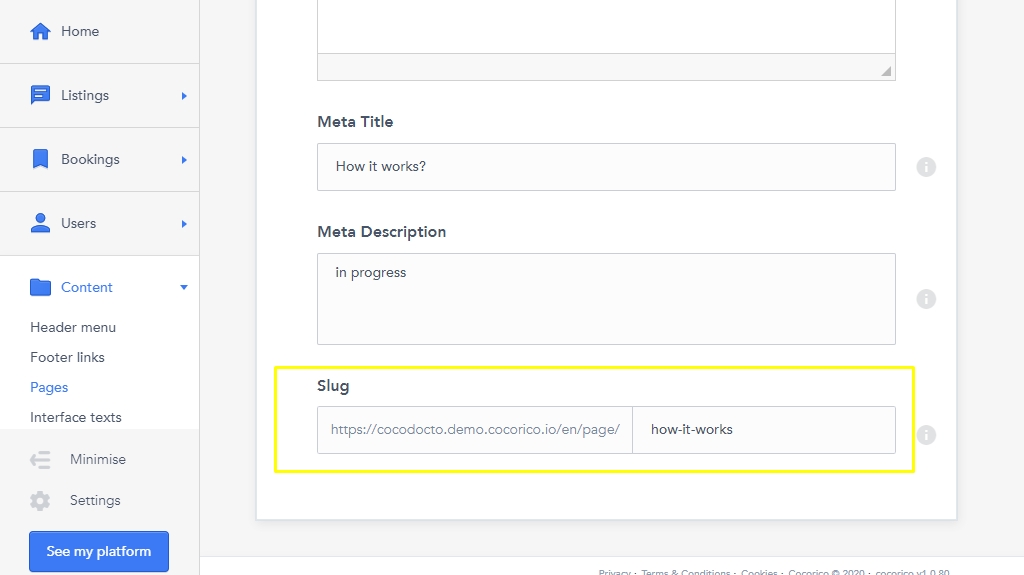
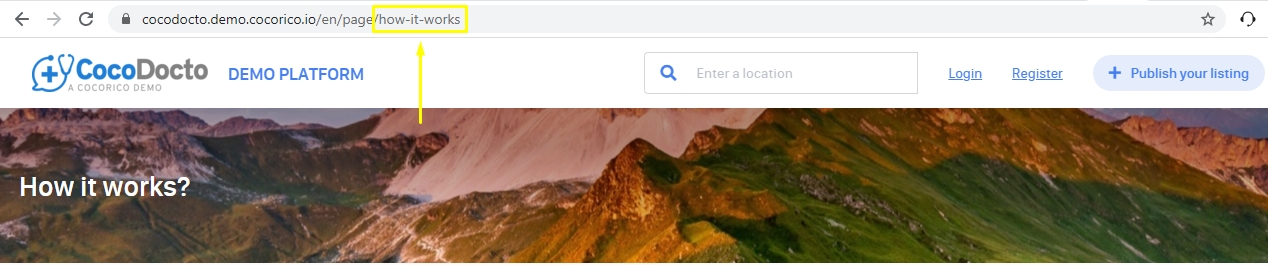
The slug is the part at the end of a page's URL and it refers to the specific content of the page, so it could be said that it describes and identifies it. Below you can find an example for the page "How it works" which can be found at the end of this article.
Optimizing your pages' slug will improve your SEO, as it helps both users and search engines identify the content of your pages, therefore impacting the ranking process for search engine results pages (SERP).
Include keywords
Keywords included in the slug will help search engines understand which keywords will be ranked for the platform's pages and they will also be visible in the SERPs for everyone searching the web to see. Select words that are descriptive and avoid confusion.
Keep the slug easy to understand.
Avoid stopping keywords
Words that do not add value or help identify a page should be avoided as much as possible. Some examples of these are: the, of, a, on, in and is.
Keep the slug clear.
Make it short
Avoid heavy slugs and people will be able to understand them better and faster. Additionally, search engines will try to match what the users are searching for with the pages' slugs to index and rank results. This will not necessarily make the pages rank higher than others but it can create a small advantage.
Keep your slug short.
Check the format
Separate words with hyphens “- “ and, if possible, avoid using characters other than letters a-z and numbers. Also, use only lowercase letters.
Keep the slug clean.
The slug can be modified by accessing SBO > Content > Pages
In order to apply the changes correctly you also need to access SBO > Content > Interface Texts and modify the correspondent parameter’s slug to the same selected on the page.
In addition to it, make sure to click on the button “Clear cache” on the top right of your screen to see the changes.
Manage internal pages of a platform.
An internal page is what can be created/set directly in the SBO.
WHO CAN USE THIS FEATURE?
Logged super-administrators and logged administrators.
To add a page click “Add page”, at the top of your screen, then fill in the required information.
The following are the text area to fill in:
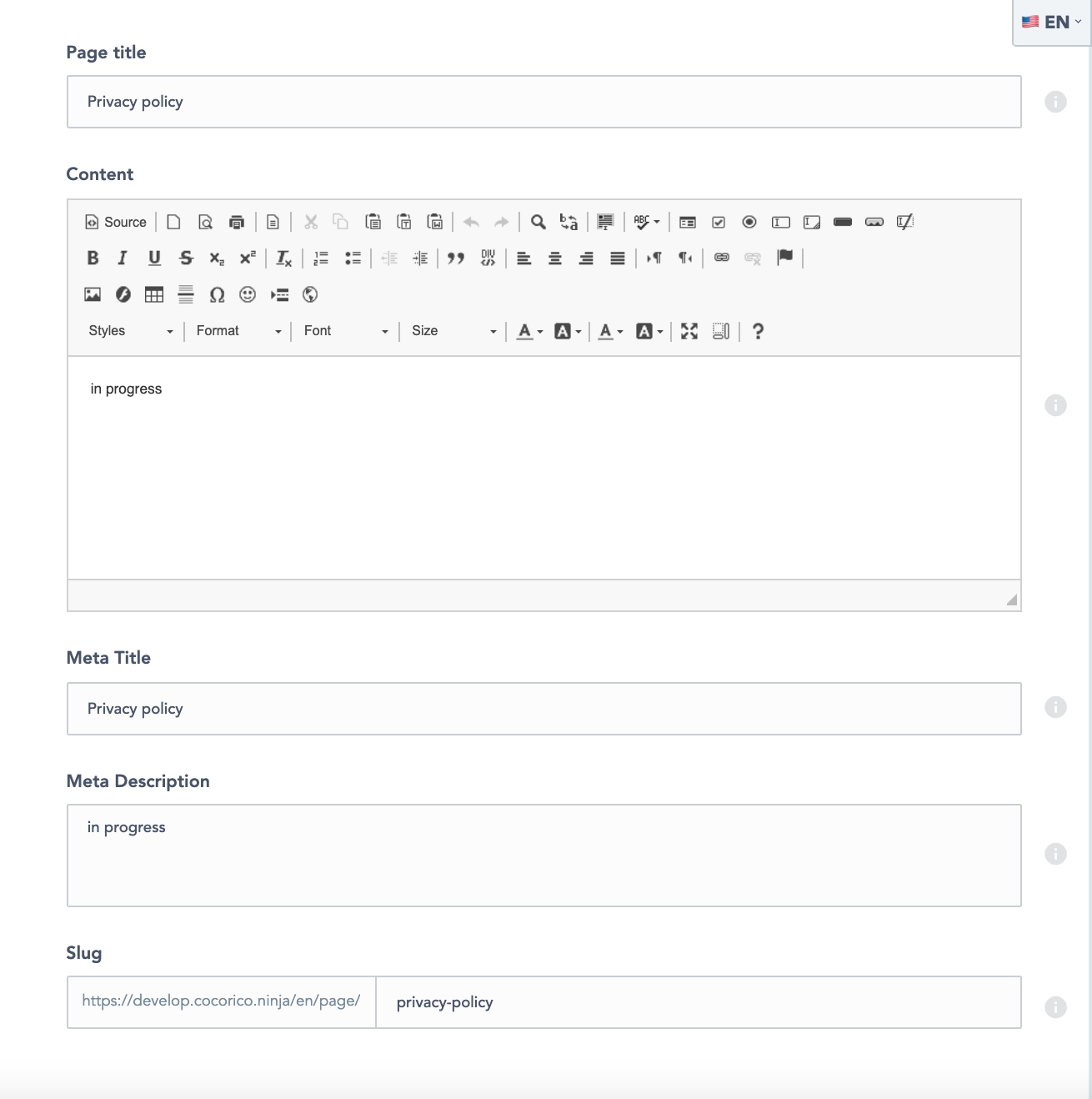
Page title (figure 1), this page title will be seen by users so it has to be relevant.
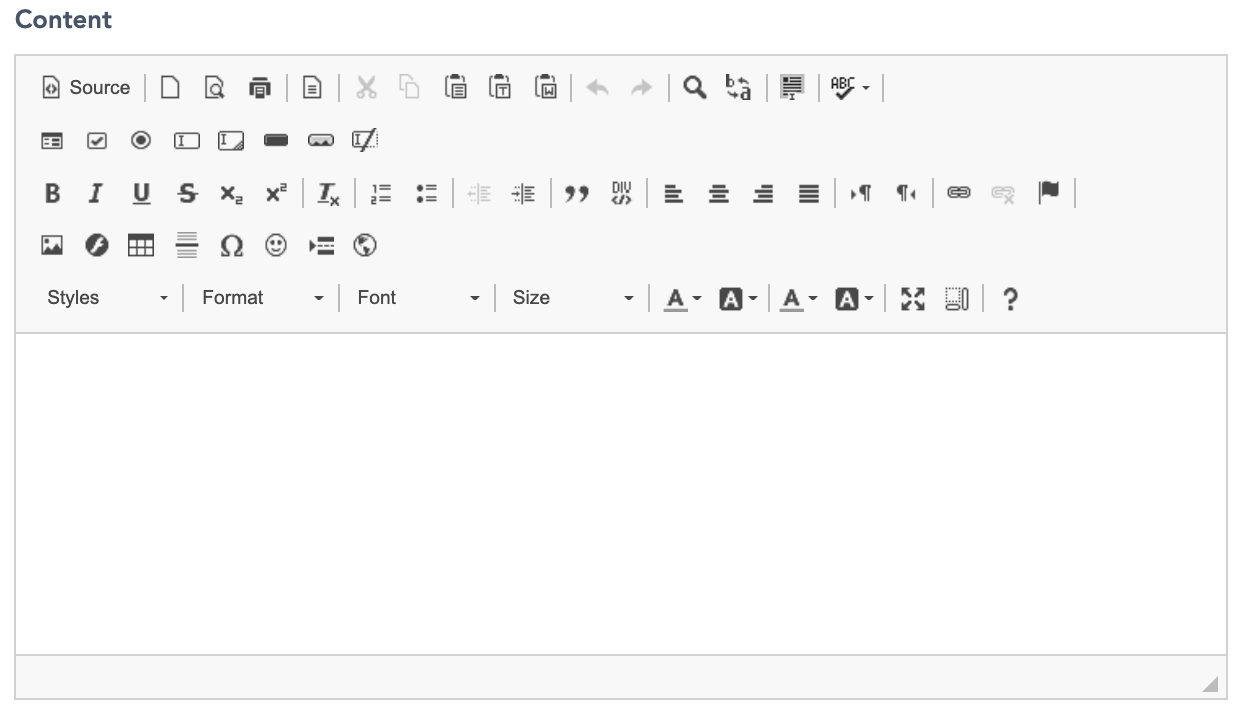
Content (figure 2) is where to write the content of the page
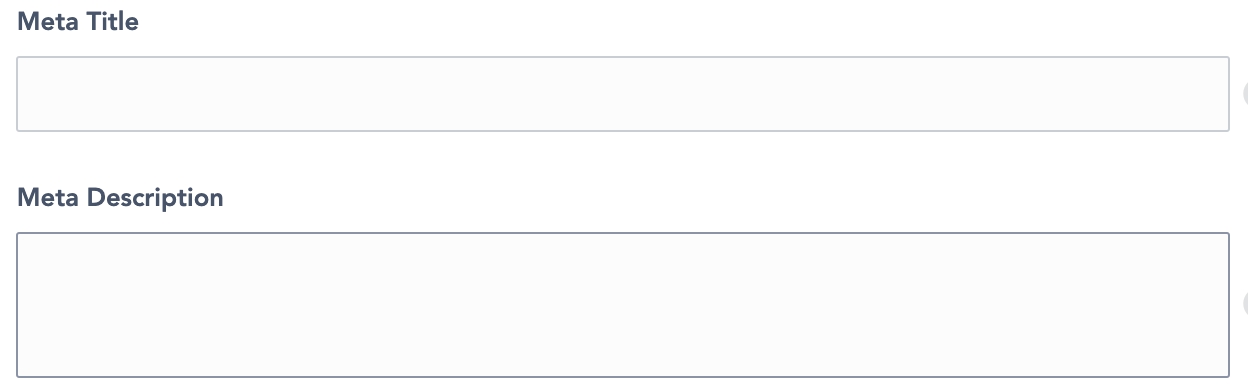
Meta Title and Meta Description (figure 3) work for category management. Here is a reminder of what is it, and how it works:
Meta-title: This is important for the SEO of the platform, the meta-title will be displayed by any web browser, on the top of the window. It gives a title to the page. It is also displayed on search engine results pages.
Meta-Description: It goes hand in hand with the meta-title. Also important for the SEO of the platform. It is the description of the page, used for the result of the Search engine, referencing the page.
The slug (figure 4) is a word that will be in the URL for the content page. If it isn’t set, it will automatically be done based on the title of the page.
The following link will explain more about the ins and outs of the slugs: .
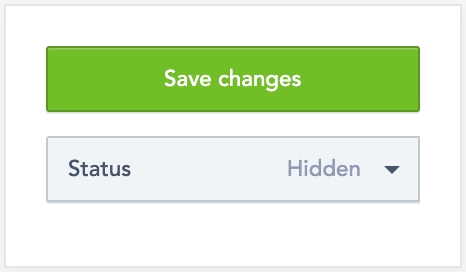
The status (figure 5) with the dropdown menu, on the side card:
Published
Hidden
Save the information by clicking “Save Changes” (figure 5)
A demo video about “How to create content pages” is available here:
This video concerns release 1.4, according to the platform release it can change.
See all the internal pages and manage them.
Each page block (figure 6) is composed of:
The title page.
The status of each internal page
The date and hour the page has been created at
A brief extract of the content page.
From the SBO, click the “eye” icon. It will open a new tab on your browser about the page and it will show the page details as if you were a user. It is the way the page is displayed.
From the SBO, click the “pen” icon. Usually, the “pen” icon is used to update information, but in this case, it will also help to find information about the page.
In the main body, the super-administrator will find the forms of the page creation (figure 8).
The side card (figure 7) gives the super-administrator information about:
The Id of the page
The creation date of the page
The update date of the page
To update a page, click the “pen” icon, it will open the page edition (figure 8).
To edit the information, it works the same as “Create a page” detailed previously.
Deleting a listing can only be done through one path:
Click the “pen” icon and click “Delete this page” (figure 9) on the side card.
Front:
Guide:
[1.13.X] [1.12.X] Guide: add contents to internal pages
Demo video: