> For the complete documentation index, see [llms.txt](https://features.scnd.com/llms.txt). Markdown versions of documentation pages are available by appending `.md` to page URLs; this page is available as [Markdown](https://features.scnd.com/v2.0/superadmin/users/users-messages-management.md).
# Users messages management
Manage a message in the threads created on your platform.
{% hint style="info" %}
*Path: SBO > Users > Messages*
{% endhint %}
* [Definition](#id-1.16.x-usersmessagesmanagement-definition)
* [Booking threads (associated with a provided service)](#id-1.16.x-usersmessagesmanagement-bookingthreads-associatedwithaprovidedservice)
* [Simple threads (associated or not with a listing)](#id-1.16.x-usersmessagesmanagement-simplethreads-associatedornotwithalisting)
* [Create Messages](#id-1.16.x-usersmessagesmanagement-createmessages)
* [Read the Messages threads](#id-1.16.x-usersmessagesmanagement-readthemessagesthreads)
* [Thread list](#id-1.16.x-usersmessagesmanagement-threadlist)
* [Messages card](#id-1.16.x-usersmessagesmanagement-messagescard)
* [Update Messages](#id-1.16.x-usersmessagesmanagement-updatemessages)
* [Delete Messages](#id-1.16.x-usersmessagesmanagement-deletemessages)
* [Related resources](#id-1.16.x-usersmessagesmanagement-relatedresources)
## Definition
All messages sent between users generate a thread.
A thread allows the interlocutors to follow all the messages in the same interface (Dashboard side)
There are 3 types of thread :
* Booking threads (associated with a provided service)
* Simple threads (associated or not with a listing)
### Booking threads (associated with a provided service)
A thread is created for each booking request.\
The offeror can accept the request directly, or discuss it with the asker to decide whether to accept or refuse a request.\
If a message is sent during the service request, OR when the service is pending/in progress, it creates threads associated with the provided service.
### Simple threads (associated or not with a listing)
A thread without a booking is created when a message is sent to a user through the listing page or the profile page.\
It does not lead directly to a booking because the user has not yet made a service request.\
There is a difference between a thread created from a listing page and a thread created from the user profile page :
* If the thread is created from a listing page, the users will see a "Make a booking request" button at the top of the thread that will take them to the listing.
* If the thread is created from the profile page, there is no link to the listing page, because there was no linked listing at the thread creation.
WHO CAN USE THIS FEATURE?
Logged super-administrator or administrator.
## Create Messages
A super-administrators or administrators *can not create messages on the SBO.*
The messages are created by users when they contact each other. Please have a look at the documentation about messages management (Front and Dashboard side).
* Documentation about message management on the Front: [Profile page (Time-based rendering type) - Profile block](https://features.scnd.com/v2.0/superadmin/users/pages/KPk6z3TZBXkifzLriQ6o#id-1.14.x-profilepage-basicsolution-profileblock)
* Documentation about message management on the Dashboard: [Messages dashboard](/v2.0/dashboards/messages-dashboard.md)
## Read the Messages threads
### Thread list
Super-administrators or administrators can see all threads created between users on the platform. For each thread, an item is created in the SBO (figure 1).
Figure 1
Each thread block is composed of:
* The content of the last message sent between users
* The message type:
* “*simple*”: Message sent is for information.
* These threads are created by sending a message to a user from his profile page or his listing page.
* “*booking*”: Messages sent is linked to a booking (provided service).
* These threads are created thread's first message
* Who received the first message of the thread
* The pictures of the two users associated with the thread
#### Messages card
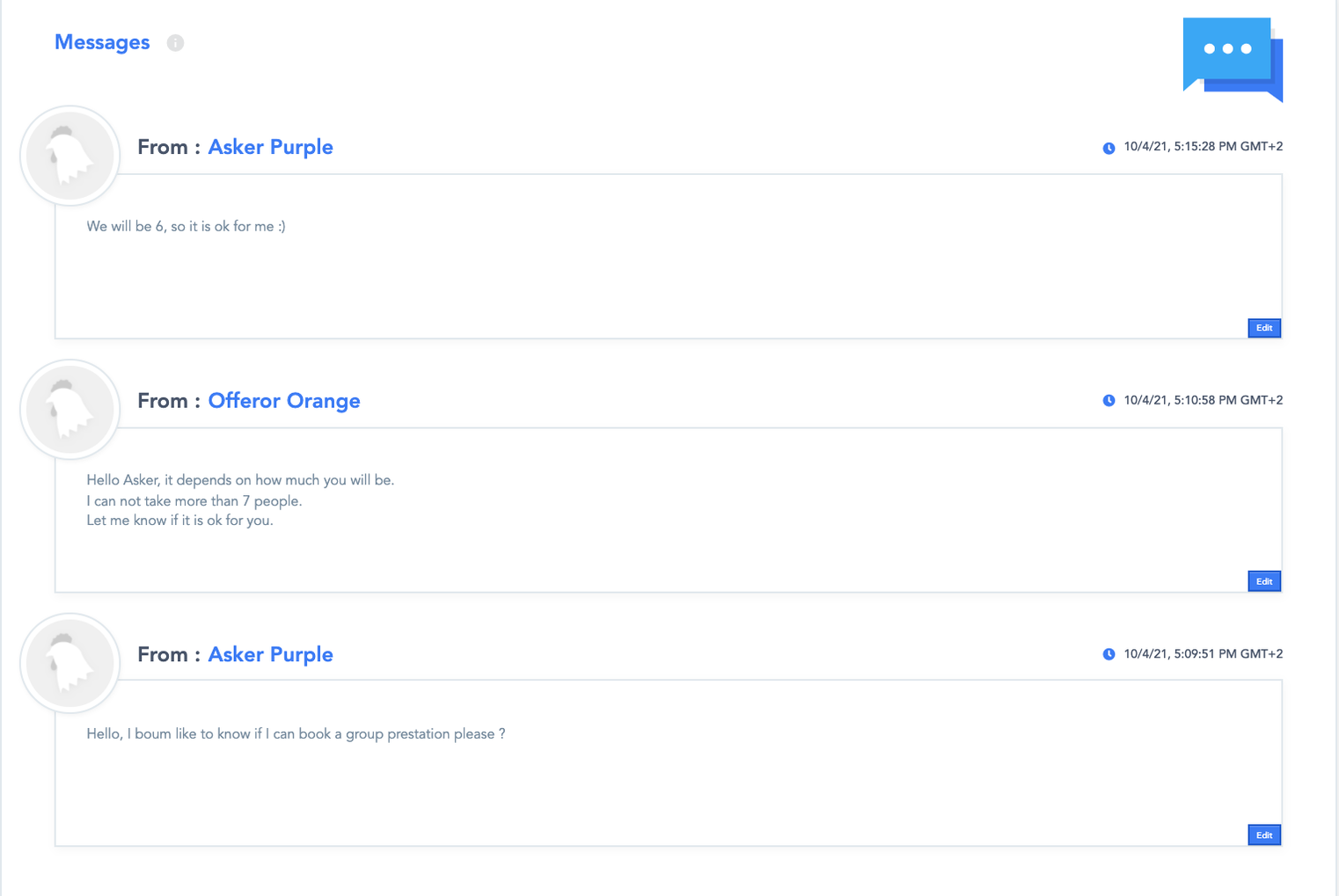
In the message card (figure 4), super-administrators or administrators can see all messages sent in the thread.
FIgure 4
Each message block display different pieces of information:
* The profile picture of the user who sent the message
* “*From*”: it is the user who sent the message
* The message content
* The date and hour of the sent message.
## Update Messages
To edit a message in a thread, super-administrators or administrators have to click the “pen” icon (from the thread list page).\
It will redirect them to the thread details page.
For each message block, super-administrators or administrators have an “edit” button (figure 5) at the bottom right. They can click it to modify the message.
Figure 5
Once it is done, click “ok” (figure 6) to save the modifications.
Figure 6
## Delete Messages
A super-administrator or administrator can not delete any threads on your platform.
## Related resources
**Front:**
* [Profile page (Time based rendering type) - Profile block](https://features.scnd.com/v2.0/superadmin/users/pages/KPk6z3TZBXkifzLriQ6o#id-1.14.x-profilepage-basicsolution-profileblock)
* [Listing pages](broken://pages/pAQKrHdWV6KoNY37tg9k)
* [Booking requests](broken://pages/PhwbGsEwTW84AuPMArSu)
* [Quote requests (Quote Feature)](/v2.0/front-office/quote-requests-quote.md)
* [Bid proposals (RFP Rendering type)](/v2.0/front-office/rendering-types/uncommoditized-rendering-types/request-for-proposal-rfp/bid-proposals-rfp.md)
**Dashboard:**
* [Messages dashboard](/v2.0/dashboards/messages-dashboard.md)
---
# Agent Instructions
This documentation is published with GitBook. GitBook is the documentation platform designed so that both humans and AI agents can read, navigate, and reason over technical content effectively. Learn more at gitbook.com.
## Querying This Documentation
If you need additional information that is not directly available in this page, you can query the documentation dynamically by asking a question.
Perform an HTTP GET request on the current page URL with the `ask` query parameter, and the optional `goal` query parameter:
```
GET https://features.scnd.com/v2.0/superadmin/users/users-messages-management.md?ask=&goal=
```
`ask` is the immediate question: it should be specific, self-contained, and written in natural language.
`goal` is optional and describes the broader end goal you are ultimately trying to accomplish on behalf of the user. GitBook uses it to tailor the answer towards what is most useful for that goal.
The response will contain a direct answer to the question and relevant excerpts and sources from the documentation.
Use this mechanism when the answer is not explicitly present in the current page, you need clarification or additional context, or you want to retrieve related documentation sections.